How to install on end user PC
Pre-installation Requirement
RailLab is a desktop software written in C#.NET published as a self-contained single-file application for Windows 10 (build 19041) and later
The services related to RailLab are hosted in the Azure Public Cloud and are managed entirely by Rail Concept
Recommended user PC configuration:
- Windows 11
- 8-core CPU or higher
- 32GB RAM
- 20GB free disk space (SSD)
- Internet connection (once a week)
Minimum user PC configuration:
- Windows 10 (build 19041) and later
- 4-core CPU or higher
- 16GB RAM
- 20GB free disk space (SSD)
- Internet connection (once a week)
Installation steps
We offer three way to install RailLab on the end user PC to fit as many use case as possible
All those methods are equivalent in the way they install the same exact RailLab version
We do not recommend using the RLauncher if end users have internet access restrictions or what they can install and run on their machine
While every install process has been designed to not necessitate local admin rights, it might still necessitate rights depending on the target environnement
RLauncher
RLauncher is a simple launcher software that allows easily downloading, installing and switching between RailLab versions
RLauncher can either be installed using with a setup or in portable mode
Installing RLauncher Portable
- Download RLauncher portable archive
- Unzip the
RLauncher-win-Portable.ziparchive to the desired install location - Run
RLauncher.exe - (Optional) Delete
RLauncher-win-Portable.zipas it is no longer necessary - (Optional) To uninstall simply delete the previously created install folder
Installing RLauncher Setup
- Download RLauncher setup
- Run the
RLauncher-win-Setup.exesetup - RLauncher should launch automatically
- (Optional) Delete
RLauncher-win-Setup.exeas it is no longer necessary - (Optional) To uninstall use the
Installed Appsfeature of windows: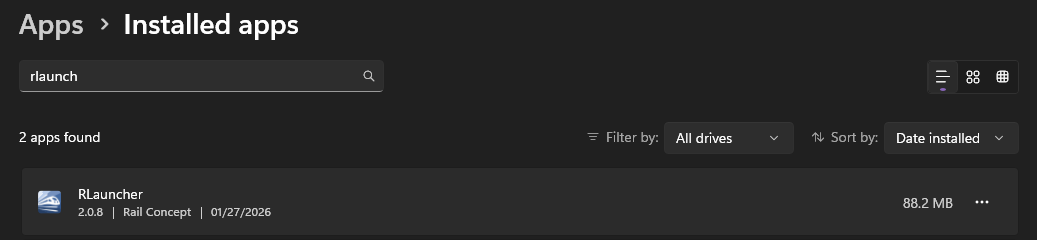
RLauncher configuration
- (Optional) Choose your desired language for RLauncher:
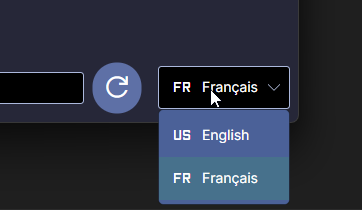
Restart is necessary for language change to take effect - (Optional) Choose your desired destination folder installed RailLab versions:
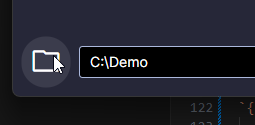
Changing the folder will not migrate previously installed RailLab versions
For system administrators and advanced users, RLauncher configuration is stored in the %appdata%\RLauncher\config.json file
The file is recreated with default values if missing at RLauncher startup
RLauncher usage
- (Optional) Refresh the list of available versions:
- Select the channel:

- (Optional) Consult the changelog for the wanted version:
- Click to install the wanted RailLab version (portable mode):
Or click to install the wanted RailLab version (setup mode):
To understand the difference between portable and setup mode see the Portable section - Launch the installed RailLab version:
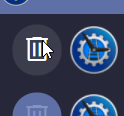
- (Optional) Uninstall an installed version:
Portable
Installing RailLab as portable keeps all the RailLab work files in the installed folder
This can also be useful if the user wants to keep separate configuration for different version or if the users doesn’t have permissions to writes files in %localappdata%\RailLabData
- Find and download the wanted version on download.raillab.fr
Portable versions are labelled asPortable - Signed - Unzip the downloaded 7z archive to the desired install location
- Run
RailConcept.RailLab.exe - (Optional) Delete the 7z archive as it is no longer necessary
- (Optional) To uninstall simply delete the installation folder previously created
Setup
We provide setups created using Velopack starting 1.2.17
- Find and download the wanted version on download.raillab.fr
Setup versions are labelled asSetup - Signed - Unzip the downloaded 7z archive
- Run the extracted setup
- RailLab should automatically start after install
- (Optional) Delete the 7z archive and the extracted setup as they are no longer necessary
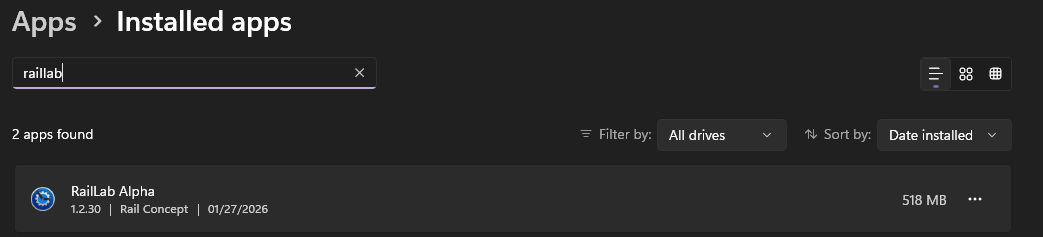
- (Optional) To uninstall use the
Installed Appsfeature of windows:
For system administrator and advanced users, setups features various CLI arguments documented here:
https://docs.velopack.io/reference/cli/content/setup-windows